
Getting Started
Phone Numbers
Obtain A Number
Remove A Number
Pages
Dashboard Pages
Admin Pages
AI Assistant
Assistant Setup
More Information
Changelog
Teams Dashboard Page
The DialBunny Teams page makes it simple to join or start a video call, allowing up to 50 participants to connect effortlessly.
Requirements
Before using teams video chat, ensure that you have an active Twilio account and already have the DialBunny plugin installed on your WordPress site.
Plugin Already Installed: You will also need to have already installed and activated the DialBunny plugin onto your WordPress site. It is also recommended that your WordPress site has a proper domain and is secured with https.
Twilio Setup Complete: In order to follow this guide you will need to first complete the Twilio Setup to ensure all Twilio API keys are properly configured.
Funded Twilio Account: In order to follow this guide your Twilio account will need to be topped up with some funds as Twilio charges small fees for video calls.
Where Is Teams Located?
Start by navigating to the DialBunny dashboard and then click on the "Teams" page to start a video call. Video calls do not require that a user has a phone number.
DialBunny Dashboard Page Location
To get to the DialBunny dashboard page simply head over to the DialBunny plugin and click on "DialBunny"
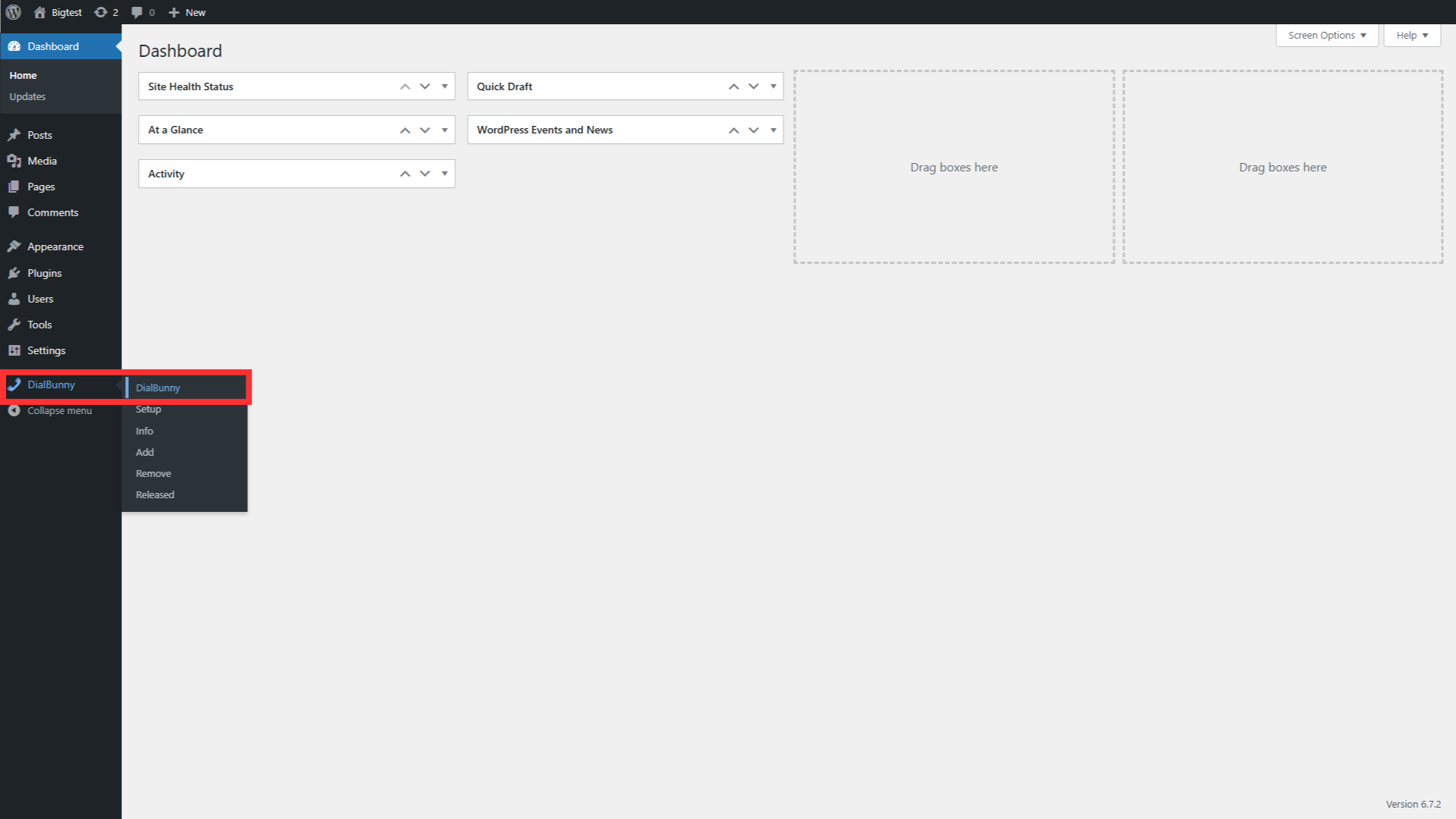
To get to the DialBunny dashboard page simply head over to the DialBunny plugin and click on "DialBunny"
Teams Video Chat Page
The "Teams" page is located on the right hand side
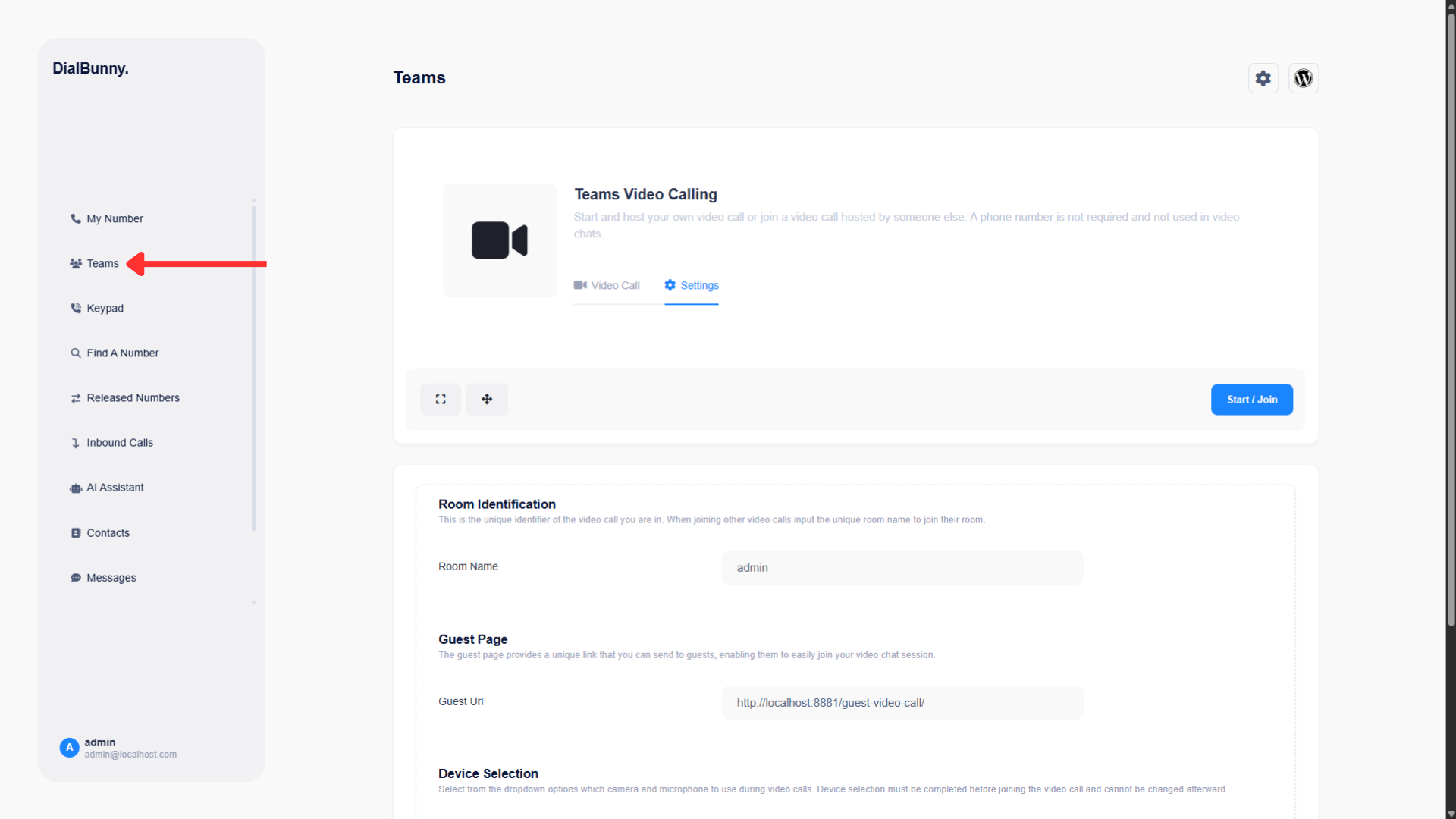
The "Teams" page is located on the right hand side
Troubleshooting
Make sure you have given your web browser access to your microphone and camera. You can still join a video call without a camera however without access to audio, the application won't be able to connect to anything.
Chrome Troubleshooting
There is a known error inside chrome that can sometimes block camera access. Make sure to enable "Zero-Copy Video Capture" inside your chrome settings to allow camera access.
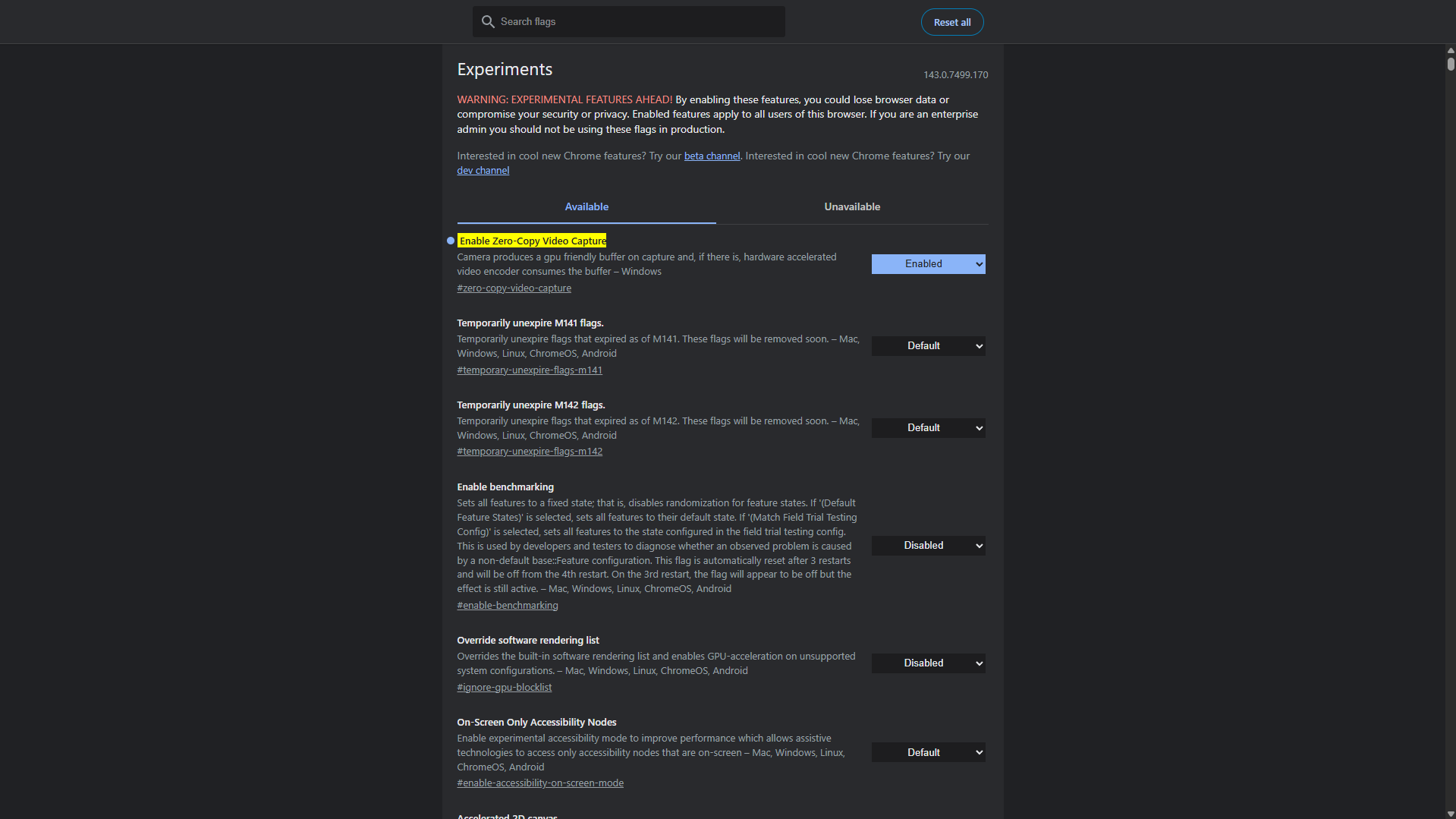
There is a known error inside chrome that can sometimes block camera access. Make sure to enable "Zero-Copy Video Capture" inside your chrome settings to allow camera access.
2025 ©
DialBunny.